

Hole
Source file: context-hole.htm
The Hole context sensitive ribbon tab contains tools specifically related to holes.

| Tool | Location on the ribbon | Operation |
|---|---|---|
 Hole Properties Hole Properties |
Hole context sensitive ribbon tab > Edit group > Hole Properties |
For information on the Hole Properties tool, see the Hole properties section of the Hole topic. |
 Multiple Hole Properties Multiple Hole Properties |
Hole context sensitive ribbon tab > Edit group > Multiple Hole Properties |
For information on the Multiple Hole Properties tool, see the Multiple hole properties section of the Hole topic. |
 Abandon Holes Abandon Holes |
Hole context sensitive ribbon tab > Edit group > Abandon Holes |
For detailed information on abandoning holes, see the information below. |
 Hole Intervals Hole Intervals |
Hole context sensitive ribbon tab > Edit group > Hole Intervals |
For information on the Hole Intervals tool, see the Edit intervals section of the Hole topic. |
 Assign Holes to Blast Assign Holes to Blast |
Hole context sensitive ribbon tab > Edit group > Assign Holes to Blast |
For information on assigning holes to a blast, see Assign Holes to Blast. |
 Hole Tabular View Hole Tabular View |
Hole context sensitive ribbon tab > Query group > Hole Tabular View |
For information on the Hole Tabular View tool, see the Hole tabular view section of the Hole topic. |
 Properties Properties |
Hole context sensitive ribbon tab > Query group > Properties |
For information on the Properties tool, see the Properties section of the Data topic. |
 Apply Charge Rule Apply Charge Rule |
Hole context sensitive ribbon tab > Charge group > Apply Charge Rule |
For information on applying a charge rule, see Applying a charge rule. |
 Update Charge Plans Update Charge Plans |
Hole context sensitive ribbon tab > Charge group > Update Charge Plans |
For information on updating charge plans, see Update Charge Plans. |
 Browse Attachments Browse Attachments |
Hole context sensitive ribbon tab > Attachments group > Browse Attachments |
For information on the Browse Attachments tool, see the Browse Attachments section of the Attachment page. |
 Open Attachment Open Attachment |
Hole context sensitive ribbon tab > Attachments group > Open Attachment |
The Open Attachment tool allows you to view and open attachments associated with a single hole. Select the tool drop-down to view the attachments and select the required attachment to open it in a new view window.
|

Abandon Holes
An abandoned hole is not considered to be 'fired' with the blast, despite still being associated with the blast.
The following rules apply to abandoned holes:
-
A published hole cannot be abandoned if there is 'loaded' or 'reconciled' explosive data recorded to that hole.
-
The abandoned holes with unsynchronised load data recorded to them will resume an active state when the device next synchronises.
To abandon a set of holes, follow these steps:
-
Select the holes to be abandoned.
-
Go to Hole > Edit > Abandon Holes.The following panel is displayed:
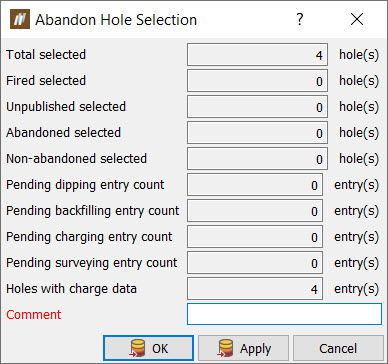
The panel shows the number of holes to be abandoned and any pending entries that will be cancelled as a result of the holes being abandoned.
-
Enter a comment and click OK or Apply. A confirmation message summarising the holes and entries to be abandoned and cancelled will be displayed.
-
Click Yes to continue.
